Showing posts with label sharepoint. Show all posts

Tuesday, June 23, 2009

SharePoint ULS logs are empty: 0 KB logs in 12 Hive logs

. Tuesday, June 23, 2009
1 comments

A few months back I decided that it was time to get rid of unnecessary SharePoint logs since I wasn't into development and event logs were coming sufficient. Just in case you guys are wondering how to enable diagnostic logs, here are the steps: -

1) Open central administration > operations. Click on 'diagnostic logging' under 'Logging and Reporting'.

2) Select 'no' for 'Customer Experience Improvement Program' and 'ignore errors' for 'error reports'. If you wish to throttle (restrict) the events captured, select from category and events to be captured in event logs and trace logs (12 hive).

3) Provide the location for storing these logs. I usually keep 5-10 log files of 10-30 minutes each; otherwise my disk becomes full. As a practice keep logs in a different disk then the MOSS/WSS installation so that disk full issues do not affect the service.

NOTE: there are two types of logs in 12 Hive logs folder (<local-drive>\Program Files\Common Files\Microsoft Shared\web server extensions\12\Logs). The ones sitting outside the GUID folders are used for debugging and called ULS (unified logging service) logs. The ones within the GUID are usage analysis logs.

======================================================================

Anyway, back to my original issue; I happily disabled the logs, however few weeks back decided to re-enable them. And what, did everything as described above and the log files hence created were empty. Hmm, mind boggling; didn't look like a permission issue; still haven' figured out yet; the logs were being constructed but were of 0 KB each; files were empty: -

Things to check in his situtaion: -

  • enough disk space.
  • check if WSS timer service and WSS tracing service are running. Restart them once again.
  • try throttling the events (though this is most unlikely to work out as a solution since you would be restricting logs; exactly the opposite); however it worked for me; I enabled Verbose logging in trace log category of diagnostic logging page and logs started filling up. Whew!! Thank goodness, at least I have some data in logs now. This is a very strange behavior, what you guys should check is if you are throttling anything; remove that selection. For example throttling error events when no errors are there would give empty logs.

If anyone has figured out the solution, do let me know as my system is behaving exactly the opposite. :)


Wednesday, June 3, 2009

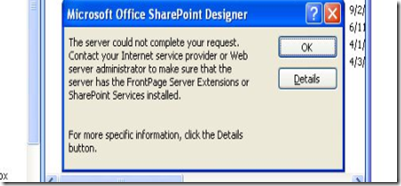
'Server could not complete your request' ; 'soap: Serverserver was unable to process request' while opening a page in SharePoint designer

. Wednesday, June 3, 2009
0 comments

image image


The error that you encounter often shows up when we try to open the file in Read-only mode without checking it out. Such errors are usually associated with incorrect master-page associations. In order to sort this out either correct the errors in the associated master-page or check-out the file and then try to open it.

Remember this could be one of the reasons of such errors and provided above is only a workaround.

'Invalid Master page' error while opening pages in SharePoint designer

.
0 comments

Adding a new master page that doesn’t reference all the content regions and hence throws invalid master page error

SOLUTION: This can only be corrected by attaching a new master page or setting the missing content regions appropriately.

'Edit Page' feature missing from Site settings menu.

.
0 comments

One edits the content pages and removes the web part zones containing web parts while keeping the web parts. This removes the option to edit the page/ removes option to edit the web parts.

SOLUTION: Add new web part zones engulfing the existing web parts.

Top Links added on a SharePoint site are not showing up for any user.

.
0 comments

Scenario:

Client has a SharePoint publishing site in which he tries to add top links for global navigation. In spite of adding them, they do not show up on the site.

Ticket Analysis:

Since this was a publishing site, it had a 'Pages' Library. This library ideally contains pages created using publishing layouts. Client had used this library to store aspx/asp/html pages created using SharePoint designer. As per the navigation settings, ‘Show Pages’ section was checked which showed pages from the ‘Pages’ library. One of these custom pages were throwing errors while rendering their links on the navigation  and hence the rest of the working top links refused to show up.

Solution:

I advised client to

1) Move these pages to some other library.

2) Use Pages library to only store publishing pages.

3) Until then, uncheck the 'Show Pages' option.

4) once done, top links started showing up.

New Pages added to meeting workspace do not appear as tabs to anyone but the author

.
0 comments

Issue: -

One adds a new page in a meeting workspace which appears as a tab. However it is visible just to the author of the page and not even to the farm admin.


image


This looks like a bug because not every workspace is affected. However it has not been confirmed by MS so far.

Cause: -

Every meeting workspace has a hidden library internally named (Pages) and externally as - Workspace Pages. All the pages created in a workspace are stored here. It is not accessible through 'View all site content' Page. This library has a field named - Title which is normally an optional field in working meeting workspaces. Apparently in above sighted cases, this field is 'Required' (unlikely event). When a page is checked in after being created all the required fields need to be populated. In normal cases we don't have any such field and hence (no issues during check-in) everyone can see the page once it is created.

However, In above cases/issue, we have a 'required' field named - Title which doesn't get populated automatically and hence the page remains in checked out state to the author.

The library named - Pages doesn't provide any view through which these columns could be populated. Hence we can say that By design they are not supposed to be populated by us. This is the primary reason that the author of these pages cannot check them in even by using SharePoint designer. One will get an error.

Resolution:

1) Un-hide this library in SPD. Right click on Pages library, select properties. Click on settings tab; uncheck 'hide from browsers'.

image

2) Now this library will be visible on GUI. Open it using 'view all site content' page. click on 'Title' column. select 'No'. click OK.

image

3) Every pages created afterwards would be visible to all users.


WHAT ABOUT THE PAGES CREATED PREIVIOUSLY??

The original page author needs to open the 'Pages' Library in SPD; make a copy of the checked out pages (created previously and invisible to all but author); paste the copy in the pages library; delete the original pages; rename the new copies with original names.


WHY CAN'T I COPY-PASTE THEM THROUGH GUI??

This would require us to browse to the Pages library view in GUI. However By design this library doesn't have any view. Though one gets an option to create view; however upon clicking OK, you will get an error. :)

STSADM -- Activate Publishing/ Publishing activation - access denied error / Greyed out link - Modify Navigation

.
2 comments

stsadm -o activatefeature -filename publishing\feature.xml -url http://<site_url>/sites/Vogue -force

stsadm -o activatefeature -filename publishingresources\feature.xml -url http://<site_url>/sites/Vogue -force

stsadm -o activatefeature -filename publishingSite\feature.xml -url http://<site_url>/sites/Vogue -force (activating on site collection level)

stsadm -o activatefeature -filename publishingweb\feature.xml -url http://<site_url>/sites/Vogue -force (activating on root site level)

stsadm -o activatefeature -filename publishinglayouts\feature.xml -url http://<site_url>/sites/Vogue -force

stsadm -o activatefeature -filename navigation\feature.xml -url http://<site_url>/sites/Vogue -force

use stsadm command line utility when: -

  • Clicking on activate/deactivate link for publishing doesn't activate publishing on site/web level.
  • Activating publishing through SharePoint UI gives 'access denied' error.

Access denied error during publishing activation is due to the reason that Publishing Resources are not activated on MOSS firs installation. hence we can manually do it using this utility (see above commands).

At times, you will notice that a publishing site has a number of grayed out links in Site actions: for e.g. 'Modify Navigation'. I was able to replicate this issue, when I ran the first command from above list. Publishing was incompletely activated and hence modify navigation link was grayed out. As soon as I ran the second command (publishingresources) the option became available.

STSADM Export/Import and Backup/Restore

.
0 comments

Difference between SPD backup and backup using STSADM backup command

1) The Backup taken using SharePoint Designer (site > administration menu > back-up website) is equivalent to STSADM – o export. It creates a .CMP file as opposed to the STSADM –o backup command.

2) The export (backup taken using SPD) can be restored using SPD (‘site > administration menu > restore website) or using STSADM –o restore command (as opposed to STSADM – o backup).

3) If the export (backup through SPD) contains a column conflict, it shall not be able to perform successful restore using SPD> In that case do STSADM –o restore.

================================================

Backup/Restore can work either on the farm level or the site collection level. One cannot use this operation to backup/restore a subsite. For this we use Export/Import operation. It can work for site collections (top level site) as well as subsites.

Backup/Restore overwrites the entire site collection/farm. Hence old contents are removed.

Export/Import merges the contents during import.

Lessons learned while using the STSADM export and import commands:

1. Alerts will not follow the site's lists and documents during the export process.

2. Email enabled lists can be an issue when importing if the destination server is not properly configured for incoming email.

3. Any task or issues list imported that emails a user when they are assigned a task will no longer send emails.  You need to disable and then re-enable the functionality in the lists settings.


<<<<source: http://mphacker.spaces.live.com/blog/cns!8040CC624DDC5404!252.entry>>>>

BACKUP/RESTORE COMMANDS

For site collection backup

stsadm -o backup -url <URL name> -filename <file name> [-overwrite]

url -----A valid URL, such as http://server_name ------ URL of the site collection that you want to back up

filename ------ A valid file name for the site collection restore file, such as "Siteres.bak" ------- Name of the restore file

NOTE:: REMOVE '[' AND ']' WHILE SPECIFYING OPTIONAL PARAMETERS :)

-------------------------------------------------------------------------------------------------------------------------------------------------------------------

For site collection restore

stsadm -o restore -url <URL name> -filename <file name> [-hostheaderwebapplicationurl] <Web application URL> [-overwrite]

url -----A valid URL, such as http://server_name ------ URL of the site collection where you want to restore (should already exist)

filename ------ A valid file name for the site collection restore file, such as "Siteres.bak" ------- Name of the restore file (complete path of file created during backup)


EXPORT/IMPORT COMMANDS

stsadm -o export  -url <URL name> -filename <export file name>

   [-overwrite]

   [-includeusersecurity]

   [-haltonwarning]

   [-haltonfatalerror]

   [-nologfile]

   [-versions] <1-4>

   [-cabsize] <integer value>

   [-nofilecompression]

   [-quiet]

--------------------------------------------------------------------------------------------------------------------------------------------------------------------------------------

stsadm -o import

   -url <URL name> -filename <import file name>

   [-includeusersecurity]

   [-haltonwarning]

   [-haltonfatalerror]

   [-nologfile]

   [-updateversions] <1-3>

   [-nofilecompression]

   [-quiet]

Features - Import spreadsheet, explorer view, edit in datasheet etc. not visible in Extranet sites

.
0 comments

The reason these options like – ‘import spreadsheet’ and ‘edit in datasheet’ are unavailable on DMZ sites is because we use Forms Based Authentication (FBA) on them. Client Integration doesn’t work well with FBA and hence has been disabled. This feature provides access to above options. Other features like ‘explorer view’ and ‘open with access’ shall also remain unavailable owing to this.

Access denied while 'Create Page' action

.
0 comments

Users with create sites rights (manage hierarchy) should ideally be able to create Pages. However they receive 'ACCESS DENIED' while trying to do so.


Resolution: -

Give them contribute access on masterpage gallery.

'Object reference not set to an instance of an object' error for site collection admin

.
3 comments

Last night I received an issue wherein a site collection admin was getting the below error only on the home page of her site. We tried with all WFEs and even with a test user account but could not replicate the issue.


image


How I resolved it: -

Since she was a site collection admin, it was safe to give her full control anywhere. The home page was a publishing page that uses masterpages and page layouts. So I went to the master page gallery and provided her full control and bingo it worked ! Next day she again received the same error. One of our team member went into the checked out files section and took ownership of all her files. And shoot, this time he was able to replicate the issue. we did a simple Binary search and were able to find out the culprit file and took it our of the library. Next thing, client regained her access. :)

Error while checking out a file - "file does not appear to be checked out"

.
2 comments

If ever we see a situation where an implicit lock is active, going to “Edit Properties” on the document (which requires checkout) is the only way I know to get the actual NAME of the person with the implicit lock.

Now if the user comes back and says she has closed Excel we still need to check because Excel and Outlook might be in a zombie state (running in Task Manager Process tab, but without having any visible windows on the desktop)  In these rare cases the lurking EXE may still have the SharePoint file open over the network.  So even though the end user swears she is no longer editing the file, the Windows client may still have the fill open and would be continually refreshing, thus maintaining the implicit lock.  Sometimes we may need to have the end user reboot to release the zombie held lock.


NOTE:: The lock can be removed only by that user and only through the system used to place the lock.

Add a site in network places as a web folder

.
0 comments

There are times when we want to add a site as a new network place and browse our way around. The best way of doing this it to add the following URL in network place wizard: -

e.g. http://<site-name>/default.aspx

make sure you add default.aspx to the site name otherwise the site will be added as a normal folder (as in open in explorer view mode of SharePoint UI) and not in webfolder format.

Site added as a web folder.

image

Site added as a normal folder.

image

Read only users get a different page formatting, page view.

.
0 comments

There would be times when a site would appear different to site collection admins and the Read only users. The first troubleshooting step in this would be:-


1) Check if the home pages is properly published..

2) If yes, then check its master page and make sure it is published and approved. This will make the changes visible for all users.

3) Check if the images, stylesheets, etc. are not in minor version formats or draft formats.

4) If the page still appears different then make the following changes in the style library.

5) change the versioning settings of style library to show draft versions to users with read access.

6) Above step should be taken if the draft versions cannot be located and are rooted deep down in the library's hierarchy.

Change Stylesheet of a web part

.
0 comments

When we add a style sheet to webpart through code, it overrides the main stylesheet of the page. However there’s a workaround approach through we can restrict styles to only one webpart.

Every webpart has a Zone Cell Id reference “MSOZoneCell_WebPart_WPQ_”. The _WPQ_ portion is replaced by the webpartzone name during the execution of the code. This can be checked by viewing the source of the webpartpage. So it would become something like #MSOZoneCell_WebPartWPQ3.

Through view source property we can find the id of the webpart to which we want to add our styles.

Suppose our webpartpage has two webparts with a table each and we want to apply styles only to the second webpart. In usual cases the stylesheet, if supplied in the webpart code, is applied to the whole page, which is not required.

The solution:

1. What we can do is, to add a Content Editor Webpart, and supply the style definitions for that particular webpart in its source editor. This webpart can be hidden.

Now again if we supply a style something like:

<style>

TABLE

{

            font-weight: normal;

            color: navy;

            font-family: 'Bookman Old Style';

            background-color: #ccccff;

}

</style>

It would be applied to the whole page. The solution is that we can use the id of this particular webpartzone (MSOZoneCell_WebPartWPQ3).(it is fixed and can be obtained through view source property if the webpart page.

Hence we can have something like:

<style>

/*changes the header of the wbepart*/

#MSOZoneCell_WebPartWPQ3 .ms-WPTitle

{

    font-weight: bold;

    font-family: verdana, arial, helvetica, sans-serif;

    color: #00ccff;

    padding-left: 6px;

    padding-right: 7px;

    padding-top: 2px;

    padding-bottom: 2px;

    font-size: 8pt;

background-color: teal;

}

/*changes the body of this webpart only, if it contains any td tag.*/

#MSOZoneCell_WebPartWPQ3 .ms-WPBody TD

{

            border-right: thin groove;

            padding-right: 1px;

            border-top: thin groove;

            padding-left: 1px;

            padding-bottom: 1px;

            margin: 2px;

            border-left: thin groove;

            padding-top: 1px;

            border-bottom: thin groove;

}

#MSOZoneCell_WebPartWPQ3 .ms-WPBody th

{

    font-size: 8pt;

    font-family: verdana, arial, helvetica, sans-serif;

    background-color: #cc0033

}

/*since datagrid is rendered as a table , hence we can provide a custom class here for datagrid. This clas can be set as the cssclass of the datagrid in the webpart code.*/

.skynetdatagrid {

font-size: 12pt;

            color: silver;

            font-family: verdana, arial, helvetica, sans-serif;

            background-color: black;

}

.skynettable

{

            font-weight: bold;

            color: green;

            background-color: #ffccff;

}

</style>

Error while moving documents across site collections, sites - cannot read from source file or disk

.
0 comments

Using windows explorer one cannot drag n drop (cut-paste) documents across site collections.

If you try to cut-paste (drag-drop) documents across site collections or across sites in same site collection, you would get the following error: -

"cannot read from source file or disk"

WORKAROUND

1) Open the source and destination libraries as network places. (using add a new network place).

2) Browse to the document libraries in question.

3) Drag-drop the files.

4) There’ll be no error.

Things to check at client’s end: -

1) Check if Webclient service is running and is set to auto start in services.msc. Stop and restart it.

Workflow error - Failed to load the workflow

.
0 comments

Existing workflows when opened through SharePoint Designer throw the following error : -

Steps to be taken : -

1) Ensure if you always get this error or if it is intermittent.

2) In case of the latter, try creating new workflow and see if any of the ECF custom actions are missing from the list.

3) If yes, try pointing to all WFEs (in case of load balancing) currently servicing that web application and see if the issue is replicated.