Showing posts with label master page. Show all posts

Wednesday, June 3, 2009

‘g_InstanceID’ is undefined' error in meeting workspace site

. Wednesday, June 3, 2009
0 comments

In a meeting workspace site, clicking on the dates mentioned in the left panel gives a JavaScript error: -

Error: ‘g_InstanceID’ is undefined.

LEVEL: Advanced

The g_InstanceID global JavaScript variable is declared in a script registered runtime by the Microsoft.SharePoint.Meetings.PropertyBag web control. This control is used in the master page that’s used by Meeting Workspace sites called “MWSDefault.master” (located on server in 12 hive\TEMPLATE\GLOBAL\).

After changing the master page on a Meeting Workspace site, the recurring meeting workspace hyperlinks under “Select a date from the list below” do not work and throw a JavaScript error.

If you create a custom master page and use it for your Meeting Workspaces, a JavaScript error is thrown.

Steps to Reproduce:

Create a new Workspace: Site Actions-> Create Site -> Select [Meetings] Basic Meeting Workspace, click Create.

On Workspace site, add a Calendar list: Site Actions -> Create -> [Tracking] Calendar.

Add a new event to Calendar list, make recurring event, and select [x] Use a Meeting Workspace to organize attendees, agendas, documents, minutes, and other details for this event. Click OK.

Follow steps to create workspace for Calendar event. Go to workspace.

Change master page for workspace: Site Actions -> Site Settings -> [Look and Feel] Master page -> select any master page for Site Master Page and System Master Page. Click OK. Go back to workspace.

SOLUTION:

a) Open SharePoint Designer 2007.

b) Go to File | Open Site and connect to SharePoint site.

c) Expand out _catalogs -> masterpage -> open master page used on Meeting Workspace.

d) In Code View, add the following line of code under

<%@ Import Namespace="Microsoft.SharePoint" %> tag:

<%@ Register Tagprefix="Meetings" Namespace="Microsoft.SharePoint.Meetings" Assembly="Microsoft.SharePoint, Version=12.0.0.0, Culture=neutral, PublicKeyToken=71e9bce111e9429c" %>

Add the following line of code after opening <body …> tag:

<Meetings:PropertyBag runat="server"/>

e) Save master page, check in (if necessary), and publish major version.

Now the links under “Select a date from the list below:” do not work and throw a JavaScript error message: ‘g_InstanceID’ is undefined .

'modification to stylesheets/master page' result in page error in SharePoint GUI.

.
0 comments

in case you're unable to determine what to correct, the best approach is to take a backup of the site and reset it to site-definition using SharePoint Designer.

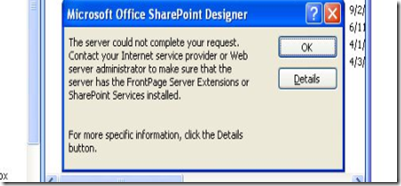
'Server could not complete your request' ; 'soap: Serverserver was unable to process request' while opening a page in SharePoint designer

.
0 comments

image image


The error that you encounter often shows up when we try to open the file in Read-only mode without checking it out. Such errors are usually associated with incorrect master-page associations. In order to sort this out either correct the errors in the associated master-page or check-out the file and then try to open it.

Remember this could be one of the reasons of such errors and provided above is only a workaround.

'Invalid Master page' error while opening pages in SharePoint designer

.
0 comments

Adding a new master page that doesn’t reference all the content regions and hence throws invalid master page error

SOLUTION: This can only be corrected by attaching a new master page or setting the missing content regions appropriately.

Access denied while 'Create Page' action

.
0 comments

Users with create sites rights (manage hierarchy) should ideally be able to create Pages. However they receive 'ACCESS DENIED' while trying to do so.


Resolution: -

Give them contribute access on masterpage gallery.

'Object reference not set to an instance of an object' error for site collection admin

.
3 comments

Last night I received an issue wherein a site collection admin was getting the below error only on the home page of her site. We tried with all WFEs and even with a test user account but could not replicate the issue.


image


How I resolved it: -

Since she was a site collection admin, it was safe to give her full control anywhere. The home page was a publishing page that uses masterpages and page layouts. So I went to the master page gallery and provided her full control and bingo it worked ! Next day she again received the same error. One of our team member went into the checked out files section and took ownership of all her files. And shoot, this time he was able to replicate the issue. we did a simple Binary search and were able to find out the culprit file and took it our of the library. Next thing, client regained her access. :)

Read only users get a different page formatting, page view.

.
0 comments

There would be times when a site would appear different to site collection admins and the Read only users. The first troubleshooting step in this would be:-


1) Check if the home pages is properly published..

2) If yes, then check its master page and make sure it is published and approved. This will make the changes visible for all users.

3) Check if the images, stylesheets, etc. are not in minor version formats or draft formats.

4) If the page still appears different then make the following changes in the style library.

5) change the versioning settings of style library to show draft versions to users with read access.

6) Above step should be taken if the draft versions cannot be located and are rooted deep down in the library's hierarchy.