Showing posts with label meeting workspace. Show all posts

Wednesday, June 3, 2009

‘g_InstanceID’ is undefined' error in meeting workspace site

. Wednesday, June 3, 2009
0 comments

In a meeting workspace site, clicking on the dates mentioned in the left panel gives a JavaScript error: -

Error: ‘g_InstanceID’ is undefined.

LEVEL: Advanced

The g_InstanceID global JavaScript variable is declared in a script registered runtime by the Microsoft.SharePoint.Meetings.PropertyBag web control. This control is used in the master page that’s used by Meeting Workspace sites called “MWSDefault.master” (located on server in 12 hive\TEMPLATE\GLOBAL\).

After changing the master page on a Meeting Workspace site, the recurring meeting workspace hyperlinks under “Select a date from the list below” do not work and throw a JavaScript error.

If you create a custom master page and use it for your Meeting Workspaces, a JavaScript error is thrown.

Steps to Reproduce:

Create a new Workspace: Site Actions-> Create Site -> Select [Meetings] Basic Meeting Workspace, click Create.

On Workspace site, add a Calendar list: Site Actions -> Create -> [Tracking] Calendar.

Add a new event to Calendar list, make recurring event, and select [x] Use a Meeting Workspace to organize attendees, agendas, documents, minutes, and other details for this event. Click OK.

Follow steps to create workspace for Calendar event. Go to workspace.

Change master page for workspace: Site Actions -> Site Settings -> [Look and Feel] Master page -> select any master page for Site Master Page and System Master Page. Click OK. Go back to workspace.

SOLUTION:

a) Open SharePoint Designer 2007.

b) Go to File | Open Site and connect to SharePoint site.

c) Expand out _catalogs -> masterpage -> open master page used on Meeting Workspace.

d) In Code View, add the following line of code under

<%@ Import Namespace="Microsoft.SharePoint" %> tag:

<%@ Register Tagprefix="Meetings" Namespace="Microsoft.SharePoint.Meetings" Assembly="Microsoft.SharePoint, Version=12.0.0.0, Culture=neutral, PublicKeyToken=71e9bce111e9429c" %>

Add the following line of code after opening <body …> tag:

<Meetings:PropertyBag runat="server"/>

e) Save master page, check in (if necessary), and publish major version.

Now the links under “Select a date from the list below:” do not work and throw a JavaScript error message: ‘g_InstanceID’ is undefined .

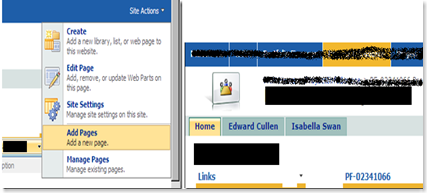
New Pages added to meeting workspace do not appear as tabs to anyone but the author

.
0 comments

Issue: -

One adds a new page in a meeting workspace which appears as a tab. However it is visible just to the author of the page and not even to the farm admin.


image


This looks like a bug because not every workspace is affected. However it has not been confirmed by MS so far.

Cause: -

Every meeting workspace has a hidden library internally named (Pages) and externally as - Workspace Pages. All the pages created in a workspace are stored here. It is not accessible through 'View all site content' Page. This library has a field named - Title which is normally an optional field in working meeting workspaces. Apparently in above sighted cases, this field is 'Required' (unlikely event). When a page is checked in after being created all the required fields need to be populated. In normal cases we don't have any such field and hence (no issues during check-in) everyone can see the page once it is created.

However, In above cases/issue, we have a 'required' field named - Title which doesn't get populated automatically and hence the page remains in checked out state to the author.

The library named - Pages doesn't provide any view through which these columns could be populated. Hence we can say that By design they are not supposed to be populated by us. This is the primary reason that the author of these pages cannot check them in even by using SharePoint designer. One will get an error.

Resolution:

1) Un-hide this library in SPD. Right click on Pages library, select properties. Click on settings tab; uncheck 'hide from browsers'.

image

2) Now this library will be visible on GUI. Open it using 'view all site content' page. click on 'Title' column. select 'No'. click OK.

image

3) Every pages created afterwards would be visible to all users.


WHAT ABOUT THE PAGES CREATED PREIVIOUSLY??

The original page author needs to open the 'Pages' Library in SPD; make a copy of the checked out pages (created previously and invisible to all but author); paste the copy in the pages library; delete the original pages; rename the new copies with original names.


WHY CAN'T I COPY-PASTE THEM THROUGH GUI??

This would require us to browse to the Pages library view in GUI. However By design this library doesn't have any view. Though one gets an option to create view; however upon clicking OK, you will get an error. :)